
How to Find Inactive WhatsApp Numbers in a Large Contact List
Step-by-step: confirm registration first, then use a bulk activity-day file task to segment long-dormant WhatsApp contacts in large lists.
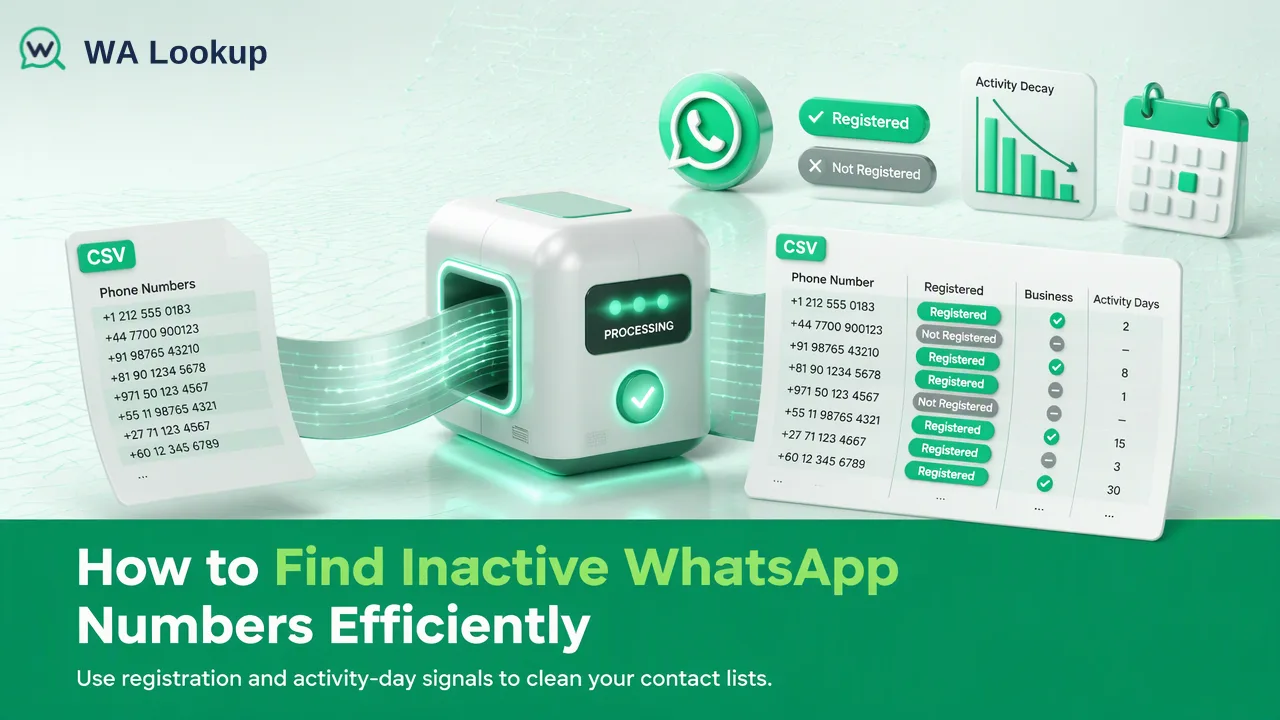
A step-by-step workflow for finding long-dormant WhatsApp numbers in a large list with registration checks and a bulk activity-day signal.
To find inactive WhatsApp numbers in a large contact list, first separate numbers without a WhatsApp account from those with one, then run the registered numbers through a bulk activity file task that reports days since each account was last active. Sorting by that number lets a team move long-dormant contacts into a separate segment before outreach. The activity signal is a dormancy measure from a file task, not a live online indicator, so it works best for list-level decisions rather than judging a single conversation.
What "inactive" means for a WhatsApp contact list
List owners use "inactive" for three different situations, and each needs a different check:
| Situation | What you see | Signal that helps |
|---|---|---|
| The number has no WhatsApp account | The number does not open a chat | Registration check |
| The account exists but has not been used for a long time | Low or no engagement from that contact | Activity days from a bulk activity file task |
| The contact is simply not responding to you | Messages are delivered but ignored | Your own engagement data, not a check |
Mixing these up leads to bad cleanup. A contact who ignores your campaigns may be very active on WhatsApp, and an account that has been dormant for months is a different problem from a number that was never registered. Keeping the three apart is the main improvement over tools that just label a list "active" or "inactive".
Inactivity also changes over time. WhatsApp's Help Center describes inactive account deletion, so an account left unused can eventually stop being a registered account. A dated registration check catches that case; the activity signal catches accounts that still exist but have gone quiet.
Step 1: Prepare the list for checking
Clean input saves balance and avoids failed checks.
- Normalize every number to international format with the country code, removing spaces, brackets, dashes and local trunk prefixes. The ITU-T E.164 recommendation describes this international structure.
- Remove duplicates after normalization, because the same contact often appears in local and international formats.
- Split by country. Bulk files should contain numbers essentially from one selected country, so export one file per country.
- Save as TXT or CSV with one number per line. Spreadsheet formats such as XLSX should be converted first.
- Keep a join key. Store the normalized number in the CRM as well, so results can be matched back to records after download.
Note that bulk file tasks do not cover mainland China, Hong Kong or Macau numbers. For those regions, limited realtime single checks are the available option, so keep them in a separate small list.
Step 2: Confirm registration first
Registration is the first filter. Numbers with no WhatsApp account at check time do not need an activity check, and removing them first keeps the dormancy segment meaningful.
For smaller sets, the WhatsApp Registration Check runs in realtime: a single number in the dashboard or API, up to 500 pasted numbers in the dashboard Realtime Batch Check, or up to 100 numbers per API multi request, each returning results in the same response. For a large database, the bulk registration file task processes the whole file: upload, wait for processing, and download the result file.
Write three outcomes back to the CRM: registered, not registered, and not yet decided. Checks that could not be decided should be retried later rather than treated as negative results, because dropping them would remove contacts who may still be reachable on WhatsApp.
Step 3: Run a bulk activity file task on registered numbers
The activity signal is available only as a bulk file task. It is not part of the three realtime checks, so plan it as a list-level job.
- Export the numbers that have a WhatsApp account into a TXT or CSV file, one number per line, per country.
- Submit the file as an activity bulk task from the dashboard or through the bulk task endpoint, POST /api/v1/bulk-tasks.
- Balance is reserved when the task is submitted. Wait for processing; the task status can be followed in the dashboard or with GET /api/v1/bulk-tasks/{id}.
- Download the result file when processing completes. Any unused reserved balance returns to the account balance, and a failed task releases the full reserve.
- Import the activity-day value into a number field on each contact, along with the date of the task.
Per-product limits apply to bulk files, so check the current API documentation before splitting a very large export.
Step 4: Segment contacts by days since last activity
Activity days counts the days since the account was last active. It is not a last-seen timestamp or a live online status; it is a dormancy measure that is useful for sorting a list.
The value is most useful as buckets that match your outreach rhythm. The thresholds below are an example of an internal choice, not a product rule:
| Example bucket | Days since last activity | Suggested handling |
|---|---|---|
| Recently active | Short gap | Normal WhatsApp sequences, subject to consent |
| Cooling | Medium gap | Lower frequency, or pair with email |
| Long dormant | Long gap | Move to another channel or a re-confirmation step |
Practical tips for setting buckets:
- Look at the distribution of the first file before picking thresholds; a B2B list and a consumer list can look very different.
- Compare buckets with your own engagement history. If long-dormant contacts rarely reply in past campaigns, that confirms the cut-off.
- Keep long-dormant contacts in the CRM with a segment label instead of deleting them. Their email or phone details may still be valuable.
Step 5: Keep the segments fresh
Every result is a snapshot from the day of the check. A practical maintenance rhythm:
- New leads: run a realtime registration check on entry.
- Before major campaigns: re-check registration for segments whose check dates fall outside your chosen window.
- Periodically for large databases: re-run the bulk activity file task on registered contacts so dormancy buckets reflect recent behavior.
- After send failures: re-check the affected numbers individually.
Store the date of each check next to its value, and record the refresh window in your CRM documentation so every admin applies the same rule.
Common mistakes when cleaning inactive numbers
- Running activity checks on the whole raw list. Filter by registration first; it keeps the dormancy segment focused on accounts that exist.
- Treating non-response as inactivity. A contact who ignores campaigns may be active on WhatsApp; use engagement data for that question.
- Deleting dormant contacts outright. Segment them instead and try other channels.
- Uploading mixed-country files. Split by country before submitting bulk tasks.
- Using browser extensions on a work account for large lists. Tools that run through a logged-in WhatsApp Web session tie every check to that account; review the WhatsApp Terms of Service before using them.
- Recording undetermined checks as negative results. Retry them and keep the previous value until a decided result arrives.
FAQ
How can teams find WhatsApp numbers that have gone dormant?
Confirm registration first, then submit the registered numbers as a bulk activity file task. The downloaded results include days since last activity, which can be sorted into dormancy buckets.
Which check provides the activity-day signal?
Activity days comes from the bulk activity file task, so it is planned as a list-level job. For single numbers or small sets, realtime checks cover registration, avatar availability and business-account type.
Which file format do bulk activity tasks accept?
TXT or CSV files with one number per line in international format, with the numbers essentially from the selected country. Per-product limits are listed in the current API documentation.
How should long-dormant contacts be handled?
Keep them in the CRM with a segment label, lower their WhatsApp priority, and reach them through another channel or a re-confirmation step. Re-check them in the next refresh cycle.
Learn More
Choose the product information that fits the next step in your workflow.