
Running a WhatsApp Bulk Check from a File
How to run a WhatsApp bulk check from a TXT or CSV file: prepare the list, pick the product, track the task and read the result file.
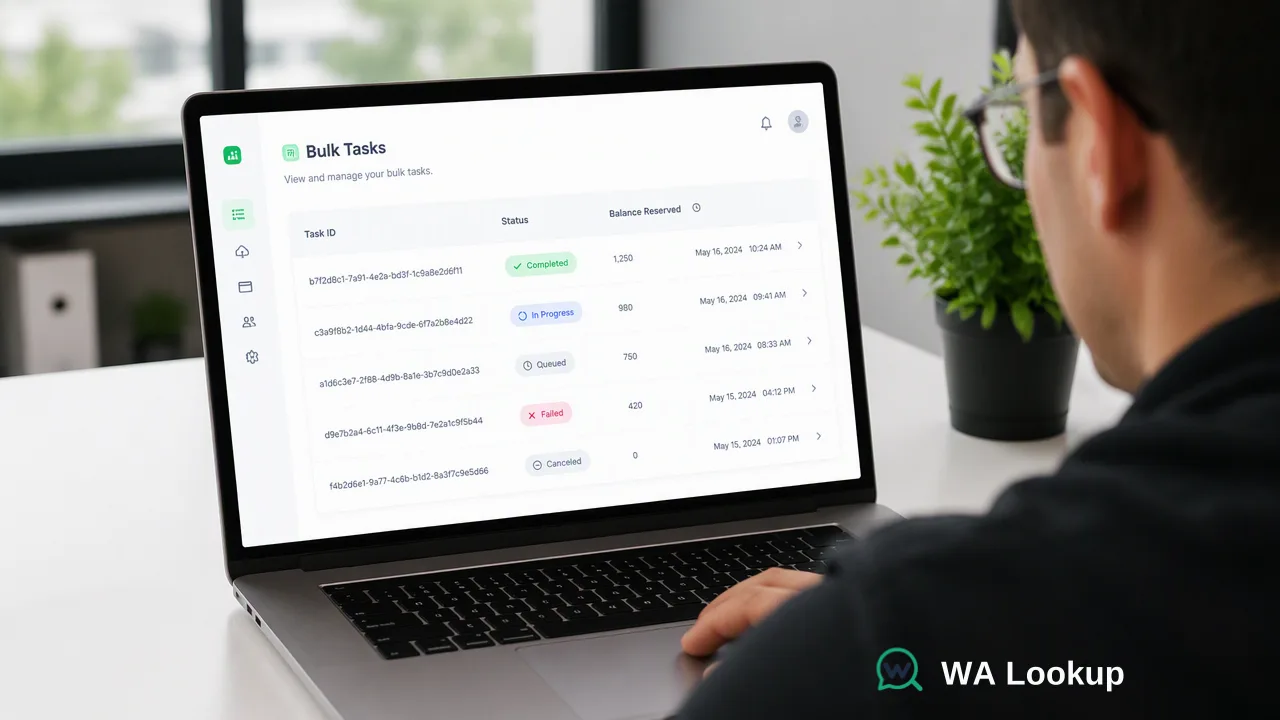
A step-by-step guide to asynchronous WhatsApp bulk check tasks and how they differ from realtime checks.
A WhatsApp bulk check from a file is an asynchronous task: you upload a TXT or CSV list, receive a task you can track, wait while it processes, and download a result file when it completes. Use it when a list is far larger than a realtime request should carry. For single numbers or small groups that need an answer in the same response, use a realtime check instead.
When a bulk file check is the right tool
Realtime checks answer inside the request that asks the question. That fits a signup form, a CRM trigger, or a small pasted group. A bulk file check fits the opposite situation: an exported list, a purchased or inherited database, or a periodic cleanup of an entire contact table.
The practical difference is the workflow, not the question being asked. With realtime you get results immediately in the response. With bulk you submit once, the task is processed separately, and you come back for the output. Plan bulk checks as a scheduled job, not as something a person waits on at a screen.
There are four bulk products, each scoped to one signal:
| Bulk product | Signal it covers |
|---|---|
| Registration | Whether the number had a WhatsApp account at check time |
| Avatar | Whether an avatar is available for the account |
| Business account | Whether the account is a business-type account |
| Activity days | Days since last activity |
Each product has its own per-file limits, so read the current API documentation before sizing a run. Do not assume the limits of one product apply to another.
Prepare the file before you upload
Most failed or wasteful bulk runs trace back to the input file. Work through this list first:
- Format. Use a TXT or CSV file with one number per line. Spreadsheet formats such as XLSX are not accepted, so export to CSV.
- International format. Give every number with its country code, with no spaces, brackets or dashes. Local-style numbers without the country code cannot be interpreted reliably.
- One country per file. The list should be essentially the country you select. A file with a substantial share of numbers from other countries is rejected at precheck, so split mixed lists by country first.
- Deduplicate. Repeated rows are charged like any other, so remove them beforehand.
- Check regional support. Bulk file tasks do not cover mainland China, Hong Kong or Macau numbers. Those regions have limited realtime single-number support only.
- Consent. Confirm you have a legitimate basis to contact these people before the file is ever used for outreach.
A precheck rejection is a useful early warning. It costs you a few minutes, not a finished run on a bad file.
Submit the task and follow its status
You can submit a bulk task from the dashboard or through the API. The API flow uses POST /api/v1/bulk-tasks to create the task and GET /api/v1/bulk-tasks/{id} to read its status. The dashboard also lists your bulk tasks and their state, which is convenient when a person, not a script, runs the job.
A sensible routine is:
- Pick the bulk product that matches the signal you need.
- Upload the prepared file and submit.
- Keep the task reference returned at submission.
- Poll the status at a modest interval, or check the dashboard, rather than hammering the endpoint. The API documentation describes concurrency and timeout controls; consult it for the current usage rules.
- Download the result file when the task is complete.
Balance is reserved when you submit. After processing, the unused part of the reserve returns to your account balance, and a failed task releases the full reserve. This is billing reconciliation, not a refund program for ordinary checks. Completed results are charged whether a number is registered or not.
Read the result file correctly
The downloadable result file is a CSV with one row per processed number. Treat each row as a signal at the time of the run:
- A registered result means an account existed at check time.
- An avatar or business value supplements registration. A missing avatar does not mean the number is unregistered, and a business flag identifies account type rather than a verified company.
- Numbers that could not be decided should be retried in a later run rather than treated as not registered.
Load the file back into your CRM or marketing tool, join it on the phone number, and store the check date next to the result. Segments then become simple filters: registered numbers to the WhatsApp queue, others to different channels.
Mixing bulk and realtime in one workflow
Most teams end up using both. Run a bulk task to clean the existing database once, then use realtime checks for every new contact that arrives afterward. That keeps the list current without repeating large jobs. Both draw from the same account balance, so one top-up covers the dashboard, the API and bulk tasks. See the pricing page for the current plan and balance details.
FAQ
How can teams submit a WhatsApp bulk check?
Upload a prepared TXT or CSV file from the dashboard or create a task through the API, then follow the task status and download the result file when it is complete.
Why might a bulk file be rejected at precheck?
A file can be rejected when a large share of its numbers belong to a different country than the one selected, or when numbers lack country codes. Splitting the list by country before upload avoids this.
What happens to unused reserved balance after a bulk task?
Balance is reserved at submission. Any unused part returns to the account balance after processing, and a failed task releases the full reserve.
How is a bulk check different from a realtime check?
A realtime check returns its answer in the same response. A bulk check returns a task first, processes the file separately and delivers a downloadable result file later.
Learn More
Choose the product information that fits the next step in your workflow.